 Log in / Become a member
 EN
EN



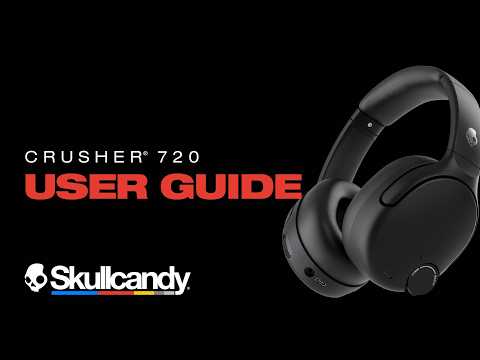
CRUSHER 720
User Guide, Features & FAQs
|
Model |
CRUSHER 720 |
|
Type |
Over Ear Bluetooth Headphones |
|
Battery Life |
65 hours |
|
Rapid Charge |
10 min charge = 4+ hours playtime |
|
Bluetooth |
V5.3 LE Audio |
|
App Support |
Skullcandy App — iOS & Android |
|
Charging Port |
USB-C |
|
Warranty |
1 Year Limited |
1. Initial Set Up & Pairing
1.1 Powering On Your Headphones
-
Press and hold the Power Button for one second (1s press) to power on your Crusher 720.
-
A Power On tone will play and the LED on the Power Button will pulse blue once to confirm the headphones are on.
-
Your headphones will announce the current battery level when powered on.
1.2 Quick Start Pairing
-
Your Crusher 720 will automatically enter pairing mode the first time they are powered on with an empty paired device list.
-
A voice prompt will say “Ready to Pair” and the LED will pulse blue continuously to indicate pairing mode.
-
Open the Bluetooth settings on your device, find and select “Crusher 720” from your list of available devices.
-
With Google Fast Pair, compatible Android devices will automatically display a pairing screen — simply press Connect.
-
A voice prompt will say “Connected” and the LED will flash blue three times to confirm a successful Bluetooth connection.
1.3 Multipoint Pairing — Connecting to a Second Device
-
Multipoint Pairing lets you stay connected to two Bluetooth devices at once — for example, your phone and laptop — so you can seamlessly switch between them without manually disconnecting.
-
With your headphones powered on and already connected to a device, press and hold the Joystick Center Button for three seconds (3s press) to enter pairing mode.
-
A voice prompt will say “Ready to Pair” and the LED will pulse blue.
-
Open Bluetooth settings on your second device, find and select “Crusher 720.”
-
A voice prompt will say “Connected” when pairing is successful.
-
Your Crusher 720 will automatically reconnect to the two most recently paired devices each time they are powered on. You can disable Multipoint Pairing in the Skullcandy App if you prefer single-device connection.
2. Default User Controls
Your Crusher 720 uses a 5-way Joystick (up, down, left, right, press in), a Power Button, a Custom button, and a Crusher Wheel for complete hands-free control.
2.1 Controls Quick Reference
|
Action |
Control |
Gesture |
|
Power On |
Power Button |
Press and hold for one second (1s press) |
|
Power Off |
Power Button |
Press and hold for three seconds (3s press) |
|
Enter Bluetooth Pairing Mode from Off |
Power Button |
Press and hold for three seconds (3s press) |
|
Play / Pause |
Joystick Center |
Press once (1x press) |
|
Answer Call |
Joystick Center |
Press once (1x press) |
|
Reject Call |
Joystick Center |
Press and hold for one second (1s press) |
|
End Call |
Joystick Center |
Press and hold for one second (1s press) |
|
Volume Up |
Joystick Up (↑) |
Press once (1x press) or press and hold |
|
Volume Down |
Joystick Down (↓) |
Press once (1x press) or press and hold |
|
Next Track |
Joystick Right (→) |
Press once (1x press) |
|
Previous Track |
Joystick Left (←) |
Press once (1x press) |
|
Activate Voice Assistant |
Joystick Center |
Press twice (2x press) |
|
THX Spatial Audio On/Off |
Custom button |
Press and hold for one second (1s press) |
|
Cycle EQ Presets |
Custom button |
Press once (1x press) |
|
Stay-Aware Mode On/Off |
Power Button |
Press twice (2x press) |
|
Enter Bluetooth Pairing Mode |
Joystick Center |
Press and hold for three seconds (3s press) |
|
Factory / Paired Device List Reset |
Joystick Center |
Press and hold for six seconds (6s press) |
|
Crusher Bass Intensity |
Crusher Wheel |
Rotate ↑ (more) / ↓ (less) |
3. Features
3.1 Crusher Bass Technology
Crusher Bass is Skullcandy’s patented, original immersive multi-sensory bass experience. The Crusher 720 features a physical Crusher Wheel on the earcup with 120° of rotation, giving you a direct, tactile way to dial in exactly how much bass you feel. Turn it up for deep, hard-hitting impact or dial it down for a clean, balanced sound.
Pro Tip: Turn Crusher Bass up for maximum impact with music, movies, or gaming. Dial it down for podcasts, calls, or when you prefer a cleaner, more balanced sound signature.
How to Use Crusher Bass Technology via Headphone Controls
-
Rotate the Crusher Wheel upward (↑) to increase Crusher Bass intensity.
-
Rotate the Crusher Wheel downward (↓) to decrease intensity.
-
When the wheel is rotated all the way down, Crusher Bass turns off completely.
3.2 THX® Spatial Audio
THX Spatial Audio surrounds you with an immersive, 360-degree sound, making your music and movies feel more lifelike than ever. Experience depth and realism as sounds move around you — just like they do in the real world.
Pro Tip: Use THX Spatial Audio to bring your movie to life
How to Use via Headphone Controls
-
Press and hold the Custom button for one second (1s press) to toggle THX Spatial Audio on or off.
-
A voice prompt will say “Spatial Audio” to confirm THX Spatial audio is on
-
A voice prompt will say “Standard Audio” to confirm THX Spatial audio is off
How to Use via the Skullcandy App
-
Open the Skullcandy App and navigate to the THX Spatial Audio widget.
-
Toggle THX Spatial Audio on or off, and use the intensity slider to adjust speaker distance.
Note: THX Spatial Audio is disabled out of the box and must be enabled via the Skullcandy App or the Custom button. Crusher 720 does not include head tracking.
3.3 Adjustable Stay-Aware Mode
Stay-Aware Amplifies external sounds so that you can maintain awareness of what is going on around you without having to turn off what you’re listening to.
Pro Tip: Use this when riding a bike near traffic or hurrying through an airport while listening for announcements.
How to Use via Headphone Controls
-
Press the Power Button twice (2x press) to toggle Stay-Aware Mode on or off.
-
A voice prompt will say “Stay Aware” or “Stay Aware Off.”
How to Use via the Skullcandy App
-
Open the Skullcandy App and navigate to the Stay-Aware widget.
-
Use the toggle switch to turn Stay-Aware Mode on or off.
-
Use the intensity slider to adjust the volume level of the ambient sound being amplified.
Note: Stay-Aware Mode is disabled out of the box by default.
3.4 USB-C Rapid Charge
Crusher 720 features Rapid Charge technology via USB-C, so you’re never sidelined for long. Just 10 minutes of charging delivers 4+ hours of playtime — enough for a full commute, a long flight, or an extended work session.
-
10 minutes of charge delivers over 4 hours of playtime
-
Up to 65 hours of battery life.
-
Full charge (1% to 100%) takes approximately 2 hours.
-
Compatible with all standard USB-C chargers and cables, including USB-C PD fast chargers.
Low battery warnings play when there is between 45 minutes and 1 hour of play time remaining, and again at approximately 15–25 minutes of playtime remaining.
How to Charge
-
Connect the included USB-C to USB-C cable to the charging port on your headphones and plug into any USB-C power source.
-
The LED will pulse Amber while charging at 0–40%, pulse White at 41–90%, and remain Solid White at 91–100%.
-
When fully charged, the LED will remain solid white as long as the cable is connected.
3.5 Personal Sound by Mimi
Personal Sound analyzes your hearing and tunes your audio to match it. It compensates for what you miss so you hear more detail, more layers, and more depth, without cranking the volume. Take a simple hearing test in the app to create your personalized audio profile, then start hearing your music the way it was intended.
How to Set Up via the Skullcandy App
-
Open the Skullcandy App and navigate to the Personal Sound widget.
-
Follow the in-app hearing test instructions to generate your personal Mimi Hearing ID.
-
Once complete, your personalized sound profile will be applied automatically to your audio output.
-
You have the option to turn your Personal Sound On and Off in the app.
-
You can revisit and retake the hearing test at any time from within the app.
3.6 Google Fast Pair
Google Fast Pair makes pairing your Crusher 720 to Android devices instant and effortless. When you bring your headphones near a compatible Android device for the first time, a pairing prompt automatically appears on screen — no hunting through Bluetooth menus required.
How to Use
-
Power on your Crusher 720.
-
Press and hold the Joystick Center Button for three seconds (3s press) to enter pairing mode.
-
Bring your Crusher 720 near a compatible Android device with Bluetooth enabled.
-
A pairing prompt will automatically appear on your Android device’s screen.
-
Press Connect to instantly pair.
-
A voice prompt will confirm “Connected” when pairing is complete.
3.7 Wear Detect with Sleep Mode
Wear Detect uses a built-in sensor to automatically detect when your headphones are being worn. When you remove your Crusher 720, audio automatically pauses. Put them back on and playback resumes — so you never miss a beat or drain your battery needlessly.
If the headphones remain off-head and undisturbed for 15 minutes, Sleep Mode activates and the headphones power off automatically to conserve battery life.
How to Use via Headphone Controls
-
Wear Detect can only be accessed through the Skullcandy App.
How to Use via the Skullcandy App
-
Open the Skullcandy App and find the Wear Detect widget.
-
Press and open the Wear Detect widget.
-
Here you can toggle Wear Detect on or off according to your preference.
3.8 Activate Voice Assistant
Crusher 720 works with any mobile voice assistant — Siri, Google Assistant, Alexa, Bixby, and more. Unlike proprietary headphones locked to a single ecosystem, you can use whichever assistant your device uses.
How to Use via Headphone Controls
-
Press the Joystick Center Button twice (2x press) to activate your phone’s native voice assistant.
-
Press twice (2x press) again to exit the assistant. (Exit is only supported on iOS and some Android devices depending on individual phone settings.)
How to Customize via the Skullcandy App
-
Open the Skullcandy App and go to Button Settings.
-
Assign Activate Assistant to your preferred gesture on the Custom button.
3.9 Preset EQ + Custom 5-Band EQ
To help you get the best sound from any content, Crusher 720 offers three preset EQ modes plus a fully customizable 5-band EQ — all managed through the Skullcandy App.
-
Music Mode (Default) — Bring out the very best in your music. This setting delivers an optimal balance of highs, mid and lows that works well across a wide variety of musical genres.
-
Podcast Mode — Hear every emotion and inflection in the dialogue of your favorite podcast. This setting reduces bass to help clarify the sounds of the human voice.
-
Movie Mode — Experience crisper dialogue and more immersive action scenes while watching your favorite films. This setting lets you hear every nuance of those cinematic moments, both large and small.
-
Custom EQ Mode — Do you have specialized taste when it comes to audio? Just move the sliders to the precise setting you prefer across five bands of totally customizable audio. Note: There is no separate Bass Boost mode because Crusher Bass is your bass boost.
How to Cycle EQ via Headphone Controls
-
Press the Custom button once (1x press) to cycle through EQ presets in order: Music → Podcast → Movie → Custom EQ → Music.
-
A voice prompt will announce each mode: “Music,” “Podcast,” “Movie,” or “Custom.”
How to Use via the Skullcandy App
-
Open the Skullcandy App and go to the Equalizer widget.
-
Select your preferred preset or choose Custom EQ Mode to adjust individual frequency bands manually.
3.10 Sidetone (Natural Voice Feedback)
Sidetone feeds a portion of your own voice back into your headphones while you’re on a call, so you can hear yourself naturally as you speak — preventing you from talking too loudly or too softly. It gives your calls a more natural, conversational feel rather than the “muffled” sensation that fully sealed headphones can create.
How to Use via the Skullcandy App
-
Open the Skullcandy App and navigate to the Sidetone widget.
-
Toggle Sidetone On or Off using the switch.
-
Use the Sensitivity Slider to adjust how loudly your own voice is fed back to you — slide up for more presence, slide down for less.
Note: Sidetone is only active during calls and voice assistant interactions.
3.11 Custom Button Settings
Your Crusher 720 lets you personalize headphone controls through the Skullcandy App. You can reassign key gestures on the Joystick and Custom button so your most-used features are always one press away.
Customizable Button Gestures
The following gestures can be remapped in the Skullcandy App:
-
Custom Button — Press once (1x press)
-
Custom Button — Press twice (2x press)
-
Custom Button — Press and hold one second (1s press)
Assignable Actions
Each customizable gesture can be assigned to one of the following actions:
-
Play/Pause – Start or stop audio
-
Activate Assistant — Start or stop your phone’s native voice assistant
-
THX Spatial Audio On/Off — Toggle spatial audio on or off
-
Cycle EQ Presets — Step through Music, Podcast, Movie, and Custom EQ modes
-
None — Disable the gesture
How to Customize via the Skullcandy App
-
Open the Skullcandy App and navigate to the Button Settings widget.
-
Select the gesture you want to customize.
-
Choose your preferred action from the assignable list.
-
Your settings are saved automatically and will persist even after powering off.
Note: Some core functions — such as Power On/Off and Volume — are fixed and cannot be reassigned.
4. The Skullcandy App
To unlock the full potential of your Crusher 720, download the Skullcandy App. Once your headphones are paired to your phone, open the app and it will automatically find the headphones and connect to them.
Use the Skullcandy App to:
-
Adjust THX Spatial Audio and the intensity slider
-
Toggle and adjust Adjustable Stay-Aware Mode
-
Select EQ presets or build your own 5-band Custom EQ
-
Complete your Personal Sound hearing profile
-
Customize button functions on the Custom button and Joystick
-
Enable or disable Wear Detect
-
Enable or disable Low Latency Mode for gaming and streaming
-
Enable or disable Multipoint pairing
-
Adjust the sensitivity, enable or disable Sidetone
-
Access User Guides and Troubleshooting help
-
Receive and install firmware updates (FOTA)
Note: The Skullcandy App is supported on iOS and Android mobile devices only. PC, iPad, and MacBook are not supported.
5. Firmware Updates
Firmware updates delivered through the Skullcandy App help keep your Crusher 720 performing at its best. These updates can improve stability, compatibility, and overall performance, helping ensure a reliable listening experience over time. \
5.1 How It Works
-
When a firmware update is available, you’ll see a notification on the Skullcandy App product home screen.
-
Press the “Update” button in the app to review the improvements before starting.
-
Before starting, confirm all of the following:
-
-
Your headphones are powered on and Bluetooth-connected.
-
-
-
Your headphones have at least 25% battery.
-
-
-
Your phone has at least 30% battery.
-
-
-
You have a stable Wi-Fi or cellular connection.
-
-
Select “start the update” to begin the update — the process takes approximately 5–10 minutes.
-
Do not exit the Skullcandy App during the update (it can run in the background, but the app must remain active).
-
Once complete, the app will confirm that your firmware update was successful.
6. Troubleshooting
6.1 Reset Your Headphones
If you’re having difficulty pairing or experiencing connection issues, you can reset your Crusher 720 by clearing the paired device list.
-
Remove your headphones from your device’s Bluetooth paired list and turn Bluetooth off.
-
Power on your headphones.
-
Press and hold the Joystick Center Button for six seconds (6s press).
-
A tone will play and the LED will alternate blue and amber flashes to confirm a successful reset.
-
A voice prompt will say “Ready to Pair” and the LED will pulse blue.
-
Turn on your device’s Bluetooth and select “Crusher 720.”
-
Accept the pairing prompt that appears on your device. A voice prompt will say “Connected” when complete.
If problems persist after a reset, our Customer Service team can likely resolve your issue quickly. Please reach out to Skullcandy Customer Service before filing a warranty claim.
7. Frequently Asked Questions
7.1 Crusher Bass and THX Spatial Audio
What is Crusher Bass?
Crusher Bass is Skullcandy’s patented, original immersive multi-sensory bass technology. Unlike a standard bass boost that simply amplifies low frequencies, Crusher uses a dedicated bass driver to produce physical vibrations you can actually feel — turning your music into a full-body experience.
The Crusher 720 features a physical Crusher Wheel on the earcup with 120° of rotation, giving you direct, tactile control over how much bass you feel.
How is Crusher Bass different from regular bass boost?
A standard bass boost is an equalizer adjustment — it raises the volume of low-frequency audio in your music. Crusher Bass goes further. In addition to the acoustic bass response, Crusher uses a second dedicated sensory bass driver to generate physical vibrations in the earcup that you can feel against your head, not just hear. This creates a multi-sensory experience that standard bass boost cannot replicate.
The Crusher Wheel on the earcup gives you precise, analog control over this sensory intensity — from completely off to maximum impact — independent of your device’s volume or EQ settings.
What is THX Spatial Audio?
THX Spatial Audio creates an immersive, 360-degree soundstage that makes music and movies feel more lifelike. Sounds are positioned around you, adding depth and realism to your listening experience.
-
On — Enables spatial audio for an immersive listening experience.
-
Off — Turns off spatial audio for a standard stereo listening experience.
Note: THX Spatial Audio on Crusher 720 does not include head tracking. Spatial Audio is disabled out of the box and can be activated via the Custom button or the Skullcandy App.
7.2 Skullcandy App and Feature
Can I use the Skullcandy App to customize the EQ
Yes. The Skullcandy App gives you full control over EQ
EQ:
-
Choose from three presets: Music Mode (default), Podcast Mode, and Movie Mode.
-
Build your own sound with Custom EQ Mode — a fully adjustable 5-band equalizer.
How does Crusher Bass create the "Bass You Can Feel" experience?
A standard bass boost is an equalizer adjustment — it simply raises the volume of low frequencies in your music. Crusher Bass works in a fundamentally different way, using a dual driver system to create bass you can actually feel.
-
Dual Driver System: Crusher headphones combine a traditional audio driver with a secondary, dedicated bass driver that generates physical vibrations synced to low-frequency audio.
-
Bass You Can Feel: Instead of only boosting bass volume, Crusher converts low-frequency signals into tactile sensation, creating a subwoofer-like experience. The vibrations travel through the earcup, turning the driver plate into a large diaphragm that produces real, deep, impactful bass — while also creating sensation through the ear cushions.
-
Adjustable Sensory Bass: The Crusher Wheel allows you to independently adjust the intensity of the sensory bass response up or down without dramatically changing the rest of the audio mix.
I’m having trouble linking my headphones to the Skullcandy App. What should I do?
-
Make sure your device’s Bluetooth is enabled, and your headphones are powered on and paired to your device.
-
When you first open the Skullcandy App, accept the Terms of Service and Privacy Policy.
-
The app will search for available devices. When an image of your Crusher 720 appears, press Connect.
-
If the app still can’t find your headphones, close and reopen the app.
-
If that doesn’t help, go to your device’s Bluetooth settings, turn Bluetooth off and back on again, then reopen the Skullcandy App.
Note: In a crowded space, make sure the app isn’t attempting to link to a nearby Skullcandy product instead of yours. Also note: the Skullcandy App is supported on iOS and Android mobile devices only — PC, iPad, and MacBook are not supported.
Will my custom button settings be saved if I power off or restart my device?
Yes. Custom button settings configured in the Skullcandy App are stored directly on the headphones. They will persist through power cycles and device restarts without any action needed on your part.
If I get a new phone, will my settings transfer?
No. Your custom button settings and app preferences are tied to the Skullcandy App installation on your current device. If you get a new phone, you will need to re-download the Skullcandy App, re-link your headphones, and reconfigure your settings.
My firmware update failed. What can I do?
Check the following and then try the update again:
-
Make sure your headphones are powered on and Bluetooth-connected to your device.
-
Make sure your headphones are linked to the Skullcandy App.
-
Confirm your headphones have more than 25% battery before retrying.
-
Confirm your phone has at least 30% battery.
-
Ensure your device has a stable Wi-Fi or cellular connection throughout the update.
-
Do not exit the Skullcandy App during the update — it can run in the background, but the app must remain active.
7.3 Pairing and Connectivity
What do I do if my Crusher 720 won’t pair to my phone?
Try the following steps:
-
Make sure Bluetooth is enabled on your phone.
-
Power off your Crusher 720, then power them back on. They will automatically attempt to reconnect to the last paired device.
-
If they don’t connect, press and hold the Joystick Center Button for three seconds (3s press) to manually enter pairing mode. A voice prompt will say “Ready to Pair.”
-
On your phone, open Bluetooth settings, find “Crusher 720” in the available devices list, and press to connect.
-
If pairing still fails, perform a full reset: press and hold the Joystick Center Button for six seconds (6s press). The LED will alternate blue and amber flashes to confirm the reset. Then re-pair from scratch.
If problems persist after a reset, please reach out to Skullcandy Customer Service before filing a warranty claim.
7.4 General
How long does the Crusher 720 battery last?
-
Up to 65 hours of battery life.
Battery life may vary depending on feature usage. Active use of Crusher Bass, THX Spatial Audio, higher volume levels, and other features can reduce total playtime.
Does Crusher 720 have fast charging?
Yes. Crusher 720 features Rapid Charge technology via USB-C.
-
10 minutes of charging = 4+ hours of playtime.
-
A full charge from 1–100% takes approximately 2 hours.
-
Compatible with all standard USB-C chargers and cables, including USB-C PD fast chargers.
What Bluetooth version does Crusher 720 use?
Crusher 720 uses Bluetooth 5.3 with LE Audio and Auracast support.
What is the Bluetooth range?
You can listen up to 30+ feet (10+ meters) from your paired device. Range may vary depending on your environment — walls, interference from other wireless devices, and physical obstacles can all affect the quality and distance of the Bluetooth connection.
Can I use Crusher 720 with a computer?
Yes. Crusher 720 connects to any device with Bluetooth, including desktop computers and laptops. It is also compatible with popular conferencing and productivity applications via Bluetooth, including:
-
Zoom
-
Microsoft Teams
-
Google Meet
-
Discord
-
ChatGPT and other AI applications
Is Crusher 720 compatible with gaming consoles?
Xbox One: No — Xbox One does not support Bluetooth audio.
Nintendo Switch: Yes — compatible via Bluetooth.
PS4: No — PS4 does not support Bluetooth audio headsets.
Can I use Siri, Google Assistant, or Alexa with Crusher 720?
Yes. Crusher 720 works with any native phone assistant — Siri, Google Assistant, Alexa, Bixby, and others. To activate your assistant:
-
Press the Joystick Center Button twice (2x press) to activate your phone’s native voice assistant.
-
Press twice (2x press) again to exit. (Exit function is supported on iOS and some Android devices — availability depends on individual phone settings.)
You can also reassign voice assistant activation to a different gesture in the Skullcandy App under Button Settings.
Does Crusher 720 have Active Noise Canceling (ANC)?
No. Crusher 720 does not include Active Noise Canceling. Instead, it features Adjustable Stay-Aware Mode, which uses the headphone’s microphone to amplify ambient sound so you can remain aware of your surroundings without removing your headphones.
7.5 Warranty
-
All authentic Skullcandy products purchased from Skullcandy.com or an authorized seller are backed by a one-year limited warranty against manufacturing defects from the date of purchase. Valid proof of purchase is required.
-
To read the full warranty policy and file a claim visit: WARRANTY POLICY